How to Add Someone to a Photo Who Wasn't There
How to add someone to a photo after the fact: pick the group shot and a matching portrait, choose where they stand, and check every face before you share it.
Someone is always missing from the group photo. Usually it is the person holding the camera. Sometimes it is a grandparent who could not travel, or a cousin who arrived late. This guide shows how to add someone to a photo with AI: which two photos to pick, where to place the new person, and what to check so the result still looks like your family.
The steps use VibePico's add person to photo tool, built for exactly this case: an existing group shot in, the same shot with one more person out.
If you arrived here looking for how to add someone to a picture, the same edit is also on the Add Someone to a Picture page.
How to add someone to a photo: the short version
- Choose the group photo you want to change.
- Upload a clear, recent portrait of each missing person, up to four.
- Pick a position: automatic, left side, right side or back row.
- Keep "Keep existing people unchanged" on, check the 10-credit fee and start.
- Compare every original person, then the added one, before you share.
The rest of the guide explains each step.
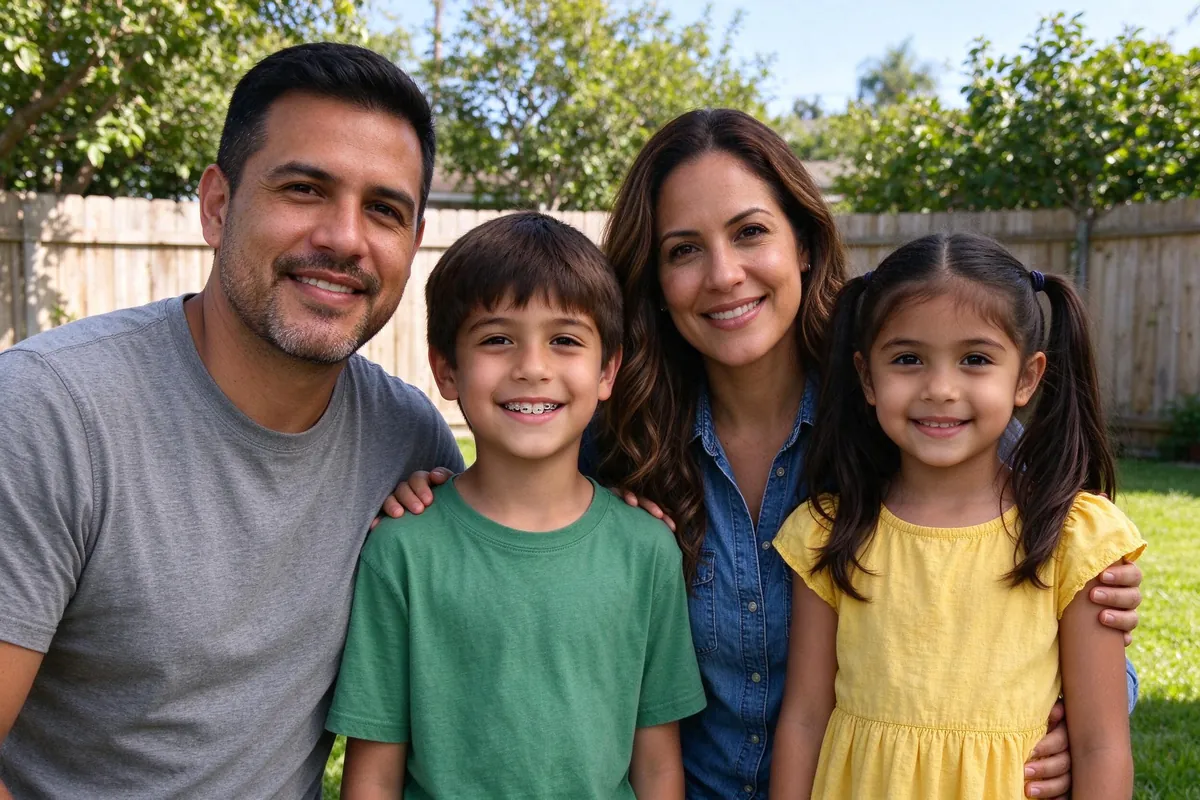
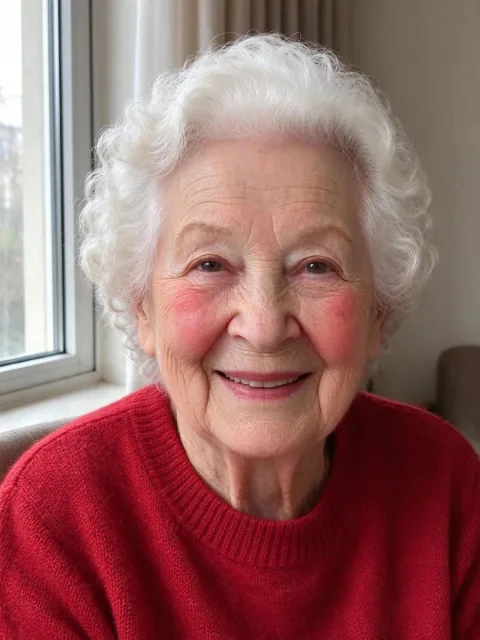
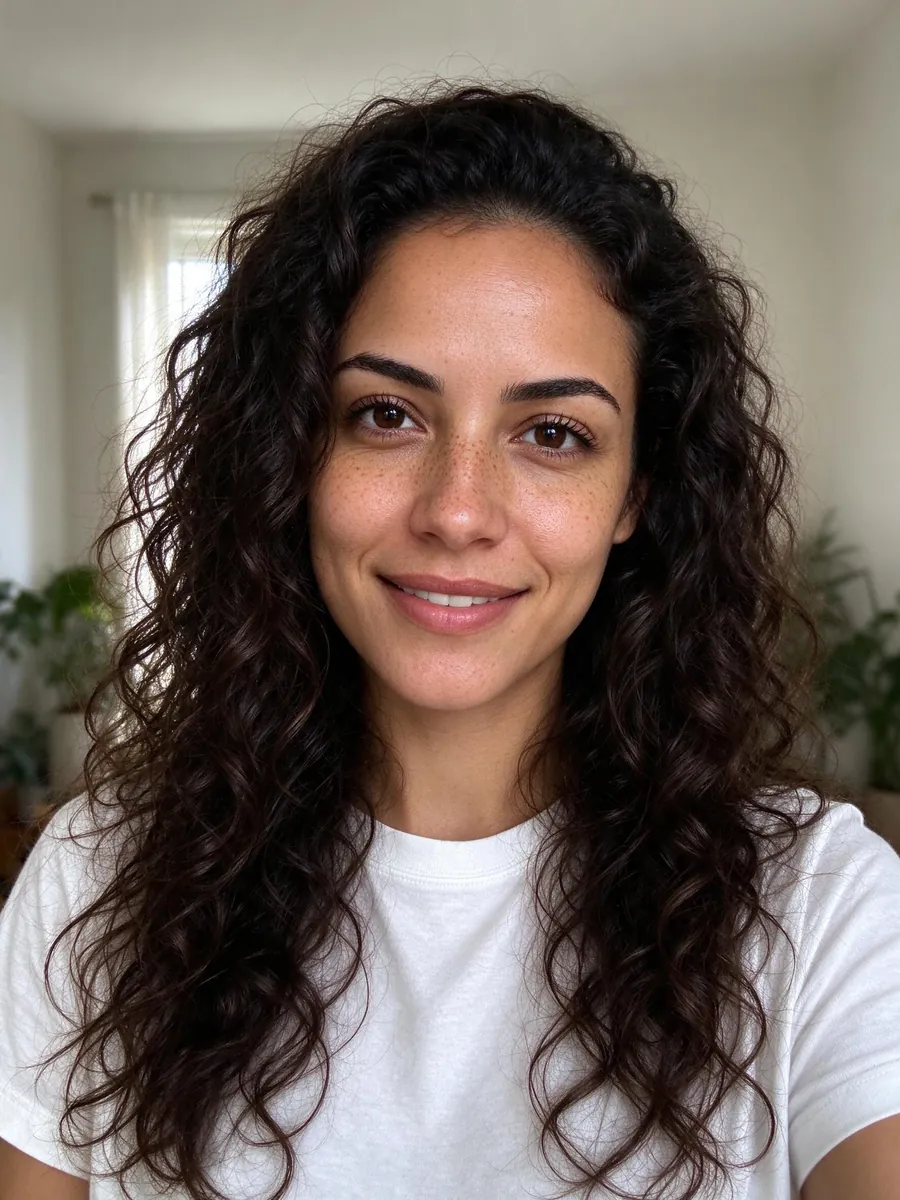
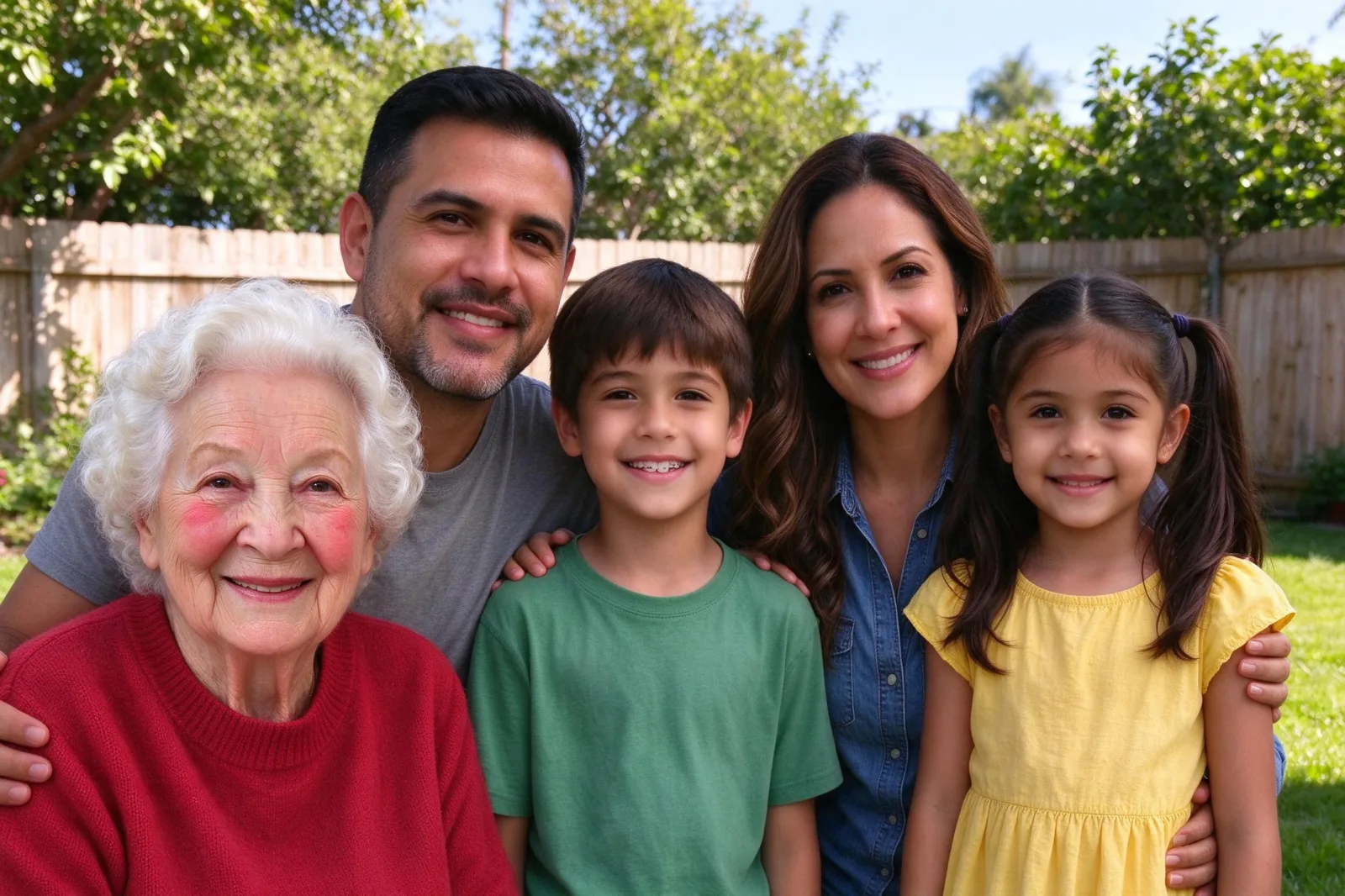
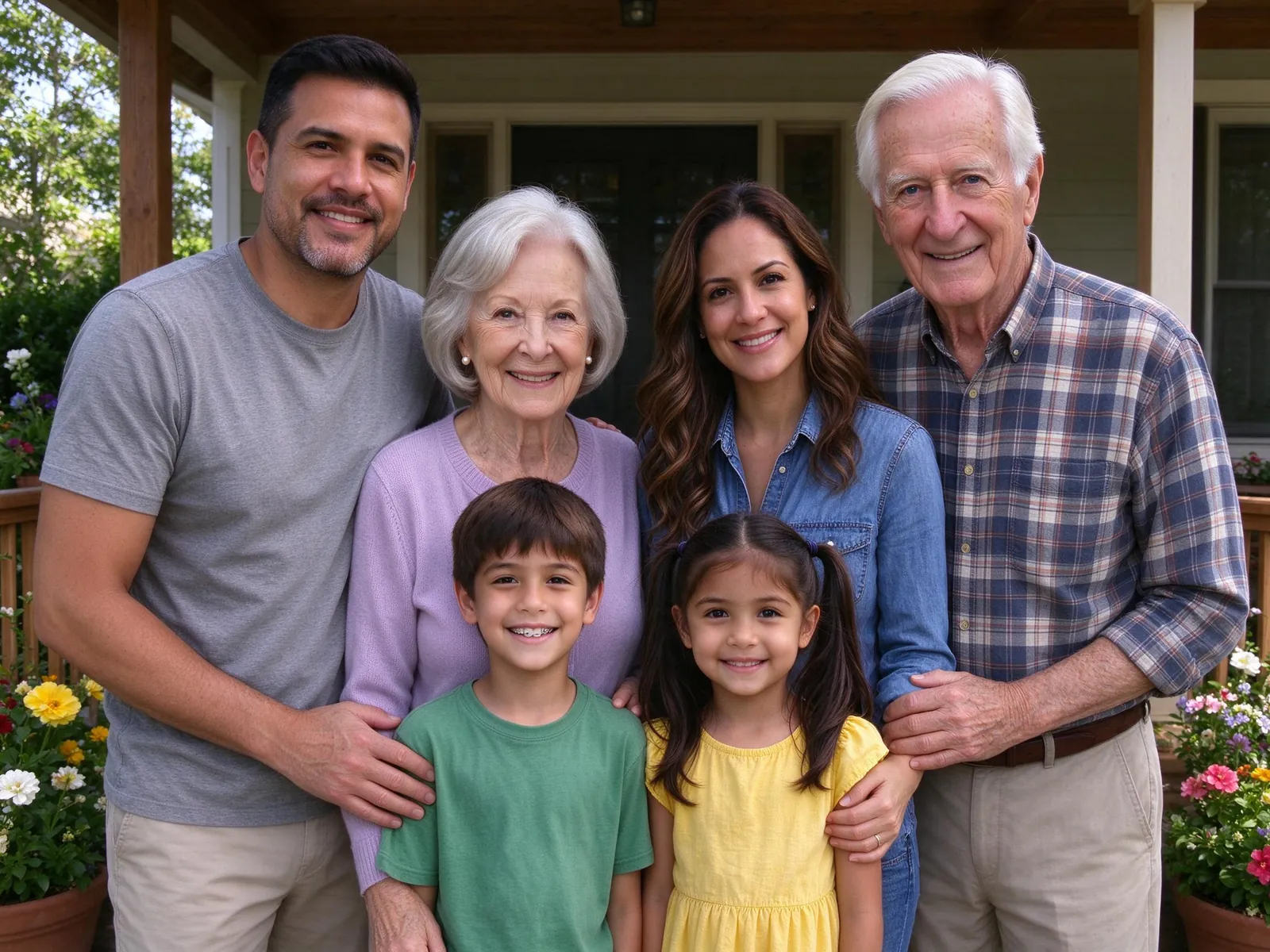
The picture at the top of this guide was made from these two inputs with the tool's own add-person edit.
Step 1: Choose the group photo to add someone to
The group photo sets everything the new person has to match: light, perspective, size and grain. A sharp, well-lit picture tells the model more.
What makes a good group photo
- everyone's face is visible and in focus;
- there is some open space at one side or behind the group;
- the light is even, not a mix of harsh sun and deep shade.
A tightly packed group with no space anywhere still works, but the model has to move people to make room.
Step 2: Pick a portrait that matches the light
This is the step that decides whether the added person looks pasted on.
Match the light, not just the face
An indoor flash photo added to a sunny outdoor group rarely blends well. If you have several photos of the missing person, choose the one whose light is closest to the group shot. In our example, grandma's portrait was taken by a window, which is soft daylight. That blended well with the afternoon sun in the backyard.
One clear face per portrait
Crop the portrait so only the person you want to add is in it. Avoid sunglasses, face filters and heavy beauty effects. A recent photo keeps hair and glasses current.
You can add up to four people in one edit, each from their own photo. For more than four, the picture gets crowded, and making a brand-new portrait usually works better. The guide on how to make a family photo from individual photos covers that route.
Step 3: Choose where the new person stands
The tool offers four placements:
- Automatic: the model picks a natural spot.
- Left side or right side: good when there is open space at that edge.
- Back row: good for taller adults and for groups that are already tight.
Placement is approximate. The model adapts perspective and lighting, so the exact spot can differ from the one you chose.
Keep existing people unchanged
This switch is on by default. It tells the model to keep everyone's faces, poses, clothing and positions, and to change the background only where the added people stand. Switch it off and the people already in the photo may shift slightly to make space.
In our example the switch was on. Grandma now sits at the front left in her red sweater, lit by the same sun as everyone else. Even so, the father moved back behind her and the boy shifted slightly right, and the frame widened a little at the edges. "Unchanged" is an instruction, not a guarantee.
Step 4: Check the fee and start
Sign in, confirm you have permission from everyone in both photos and check the fee on the button. Adding people costs 10 paid credits for one 2K image, whether you add one person or four. The free signup preview credits do not cover photo edits. If the generation fails on the provider side, the credits are returned.
Step 5: Check every face, not only the new one
People look at the added person first. Look at the originals first instead:
- each original face against the group photo;
- hands and clothing near the added person;
- the background around the new spot.
Then compare the added person with their portrait: face, hair, age and build.
Good and bad reasons to add someone to a photo
Good uses: a family photo where one person was behind the camera, a reunion someone could not travel to, a holiday card that should include everyone.
Bad uses: proving that someone attended an event, documents of any kind, or misleading anyone about who was there.
Ask first. Get permission from the people in both photos. If you are adding someone who has passed away, ask close family before you share it, and label it as an edit. The AI photo generator privacy guide explains what happens to the photos you upload.
Frequently asked questions
Will the people already in the photo change?
The default instruction asks the model to keep them as they are, but changes are still possible. Compare every original person, not just the added face.
How many people can I add to one photo?
Up to four, each from their own photo. All of them are added in the same edit for the same 10 credits.
Can I add a pet instead of a person?
This tool is built for people. For dogs and cats with their family, the AI pet portrait makes a new picture from separate photos.
What does it cost to add someone to a photo?
One 2K edit costs 10 paid credits. The pricing page lists the credit packs.
Add someone to a photo with VibePico
Now you know how to add someone to a photo so it still feels like the day it was taken: pick a portrait with matching light, choose a sensible spot and check everyone before you share. Open the add person to photo tool and upload the group shot first.