How to Add Someone to a Picture on iPhone or Desktop
Learn how to add someone to a picture on iPhone or a computer: upload the shot, add a clear portrait, pick a place, and check every face before you share it.
You already have the picture. Someone is missing from it: the person who held the phone, a friend who arrived late, a grandparent who could not travel. This guide shows how to add someone to a picture in a browser, on iPhone or on a computer, without installing an app or opening a layers panel.
The steps use VibePico's Add Someone to a Picture tool. You upload the picture you have, then a clear photo of each person you want to add, up to four. The site builds the prompt from the options you tap. You only see a text box if you turn on Advanced mode.
How to add someone to a picture: the short version
- Open the tool in Safari or any desktop browser and upload the picture you want to change.
- Add one clear portrait for each missing person, up to four.
- Choose a place: automatic, left, center, right or back row.
- Leave "Keep everyone still" on unless the group is packed tight.
- Confirm you have permission, check the 10-credit fee and start.
- Compare every original face, then the new one, before you share.
The rest of this page explains each step, including what works on iPhone.
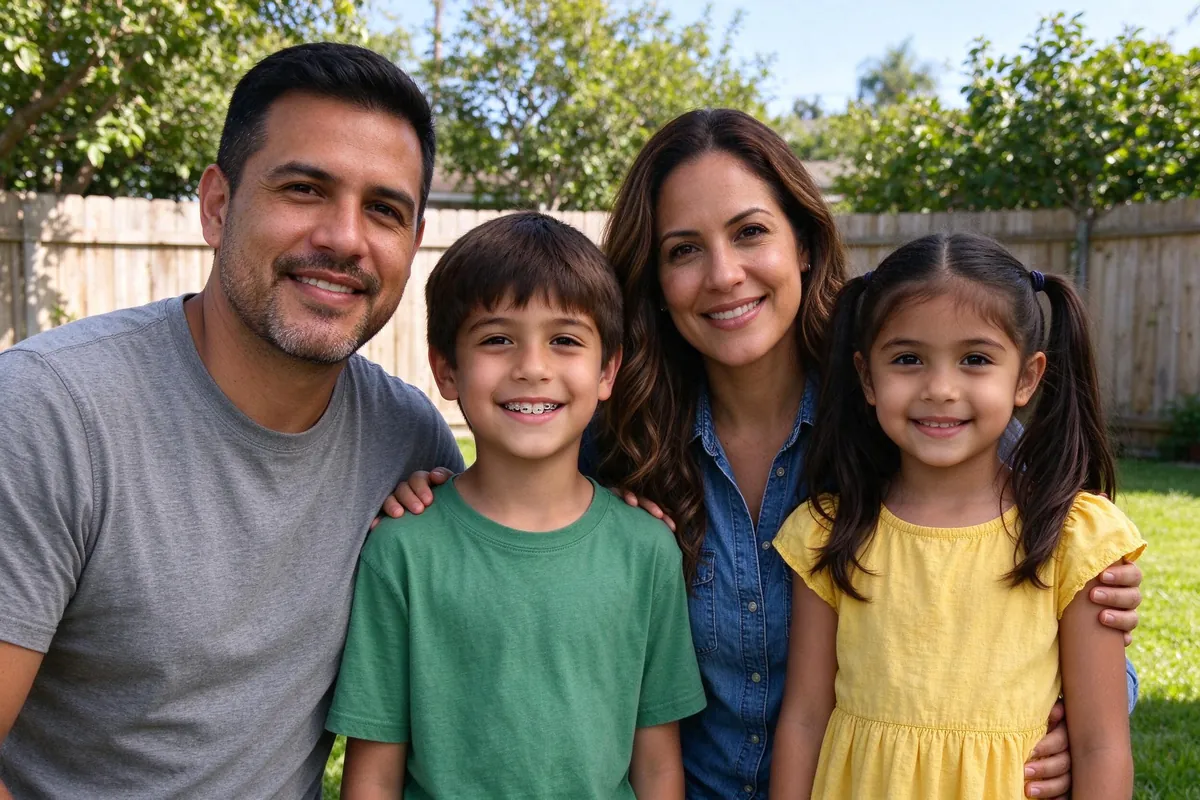
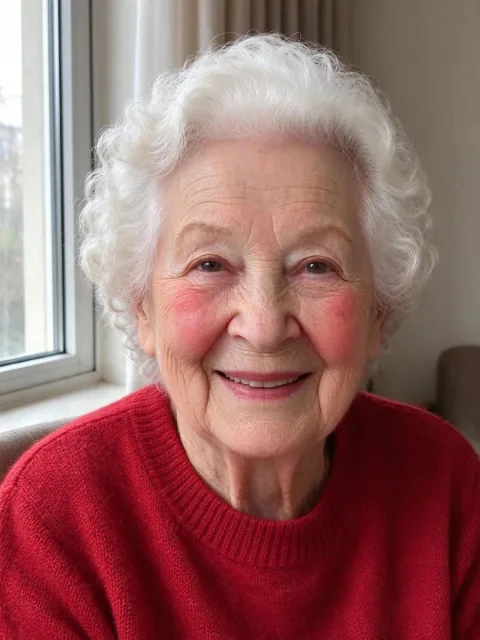
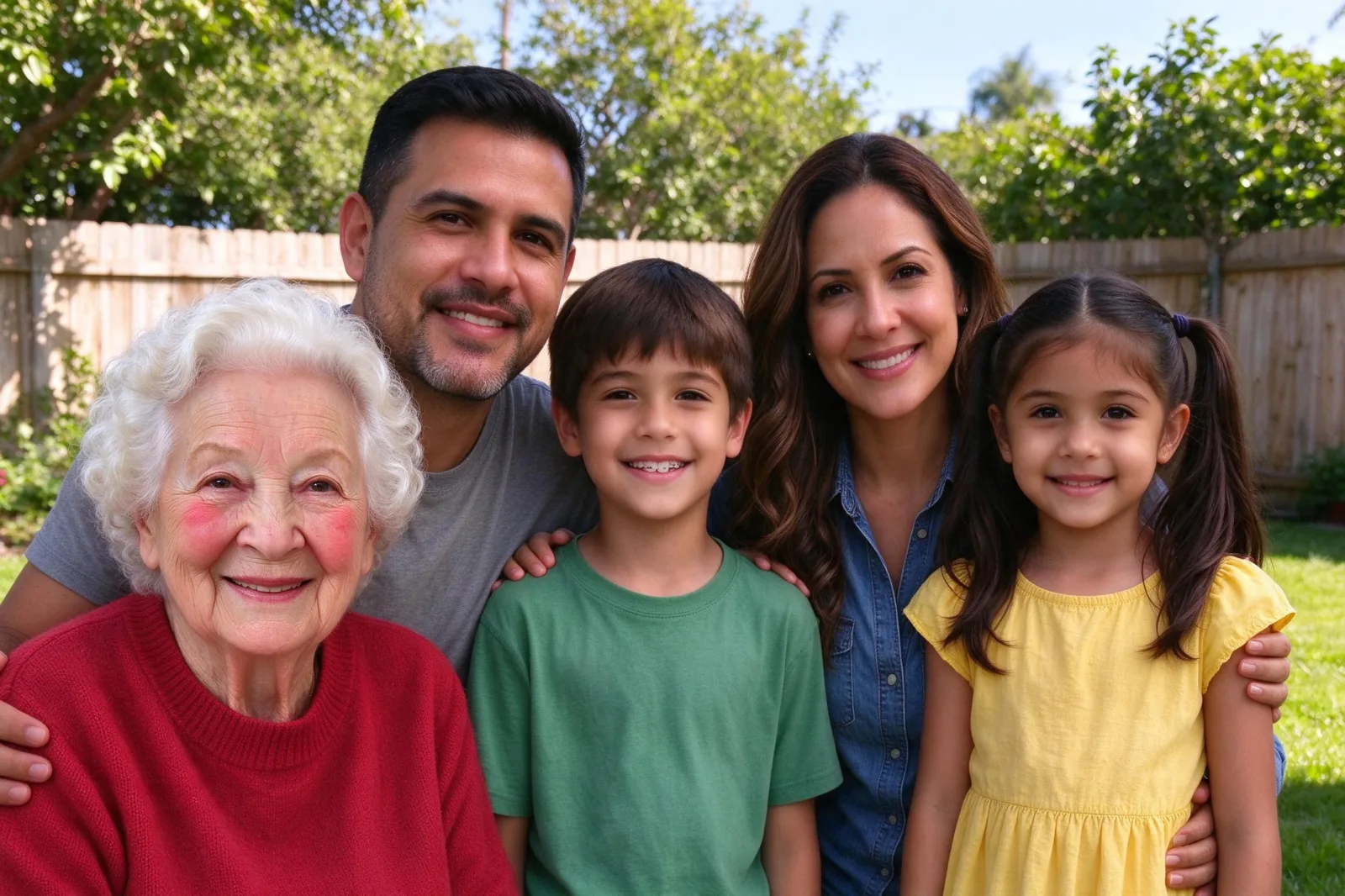
The cover image was made from these two inputs with the tool's own add-person edit, with "Keep existing people unchanged" on.
Step 1: Open the picture on iPhone or a computer
You do not need a separate app. On iPhone, open Safari and go to the tool page. The file picker can use photos already in your library, including HEIC. On a computer, drag in a JPEG, PNG, WebP or HEIC file up to 10 MB.
What makes a good base picture
- faces are visible and in focus
- there is a little space at one side or behind the group
- the light is even, not a mix of hard sun and deep shade
A tight group still works. The model may need to shift people slightly if you ask it to make room.
Step 2: Add a portrait that matches the light
This step decides whether the new person looks pasted on.
Match the light, not only the face
An indoor flash portrait added to a sunny outdoor picture rarely blends well. If you have several photos of the missing person, pick the one whose light is closest to the base picture. In the example, grandma's portrait was taken by a window. Soft daylight sat well with the afternoon sun in the backyard.
Crop the portrait so only that person is in it. Avoid sunglasses, face filters and heavy beauty effects. A recent photo keeps hair and glasses current.
You can add up to four people in one edit, each from their own photo, for the same 10 credits. For a brand-new portrait from everyone's separate photos instead of an edit, see how to make a family photo from individual photos.
Step 3: Choose where they should stand
The left-hand options build the prompt for you:
- Let AI choose: the model picks a natural spot.
- Left side, center or right side: useful when there is open space there.
- Back row: useful for taller adults and for groups that are already tight.
Placement is a hint, not a ruler. The model still has to match perspective and scale.
Keep everyone still, or make a little room
"Keep everyone still" is on by default. It asks the model to leave faces, poses, clothing and positions as they are, and to change the background only where the new people stand. Switch to "Make a little room" if the group has no gap at all.
In the example the keep-still option was on. Grandma now sits at the front left in her red sweater, in the same sun as everyone else. Even so, the father moved back and the boy shifted slightly right, and the frame widened a little. Treat "unchanged" as an instruction, not a promise.
Output size can follow the original picture or a fixed ratio such as 4:3 or 16:9. Lighting, color, scale and perspective are matched automatically.
If you need a one-line extra request, turn on Advanced mode. That text is added after the fixed rules. Identity, likeness and the number of people still win.
Step 4: Check the fee and start
The tool is visible while you are signed out, so you can set the options first. Starting the edit asks you to sign in. Photo edits use 10 paid credits for one 2K image, whether you add one person or four. The free signup preview does not cover edits. If the provider fails, the credits come back.
Confirm you have permission from the people in both pictures.
On iPhone, stay on the page while the edit runs. A minute is typical. You can recover a running job if the tab is closed, as long as you sign in to the same account.
Step 5: Check every face, not only the new one
People look at the added person first. Look at the originals first instead.
Check:
- each original face against the base picture
- hands and clothing near the new person
- the background around the new spot
- the added face against their portrait: hair, age and build
Uploads stay private to your account and are deleted after 24 hours. Results stay until you delete them. The AI photo generator privacy guide explains that in more detail.
When this is the right tool, and when it is not
Use this edit when you already like the picture and only need to bring someone into it.
If you do not have a group picture yet, make a new one from individual photos, or combine two photos into one when you have exactly two people.
A close sibling page, how to add someone to a photo, covers the same kind of edit with the wording "photo" and a missing-family-member angle. The add person to photo tool runs the same generator.
Do not use this to prove that someone was at an event, or for any official document. Label the file as an edit when you share it. Ask first, including close family if you are adding someone who has died.
Frequently asked questions
Is there a free way to add someone to a picture on iPhone?
You can do the whole setup in Safari for free: upload the picture, add portraits and pick a place. Starting the edit costs 10 paid credits for one 2K image. Signup preview credits do not cover this kind of edit. The pricing page lists the packs.
Do I need to install an app?
No. Safari on iPhone and a regular desktop browser are enough. The file picker can use your Photos library, including HEIC.
How many people can I add?
Up to four, each from their own portrait, in one edit, for the same 10 credits.
Will the people already in the picture change?
The default option asks the model to keep them still, but small shifts still happen. Compare every original person, not only the new face.
How to add someone to a picture with VibePico
You now know how to add someone to a picture so it still feels like the day it was taken: pick a portrait with matching light, choose a sensible spot, and check everyone before you share. Open the Add Someone to a Picture tool, upload the picture you already have, then the portrait.