How to Make a Family Photo From Individual Photos
How to make a family photo from individual photos with AI: which pictures to pick, how many people fit, what it costs and how to check every face first.
Grandma lives in another state. Your brother is overseas. The kids grew two inches since the last picture with everyone in it. If you have been wondering how to make a family photo from individual photos, the short answer is: give each person their own photo, pick one scene, and let an AI family photo tool draw everyone together in a new picture.
This guide walks through that process step by step, using VibePico as the example. It covers which photos work, the limits you will run into, and how to check the result before you print it.
How to make a family photo from individual photos, step by step
The old way was cut-and-paste in a photo editor. You traced around each person, matched the lighting by hand and hoped nobody looked like a sticker. AI changes the job. You do not paste people into a background. You hand over one reference photo per person, and the model generates a brand-new picture where everyone shares the same light, scene and camera angle.
That difference matters. A new picture can fix mismatched lighting. It can also change small details of a face, which is why the checking step at the end is not optional.
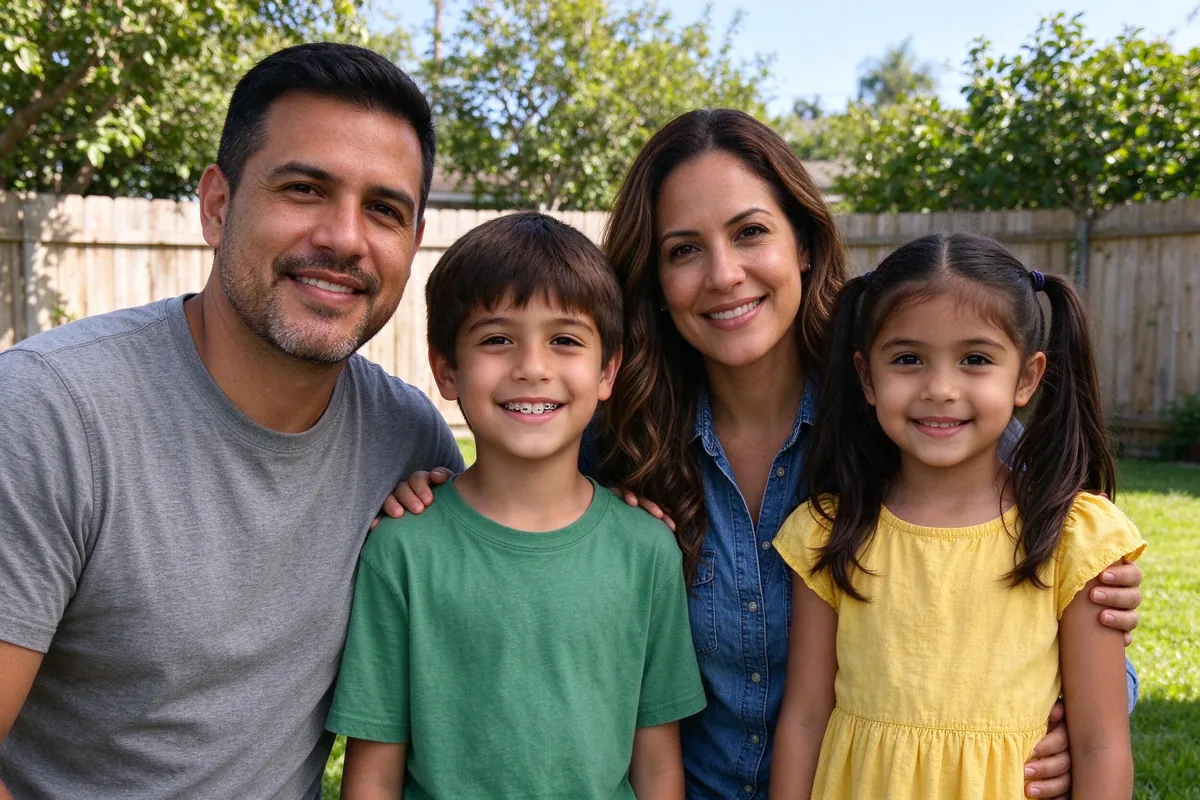
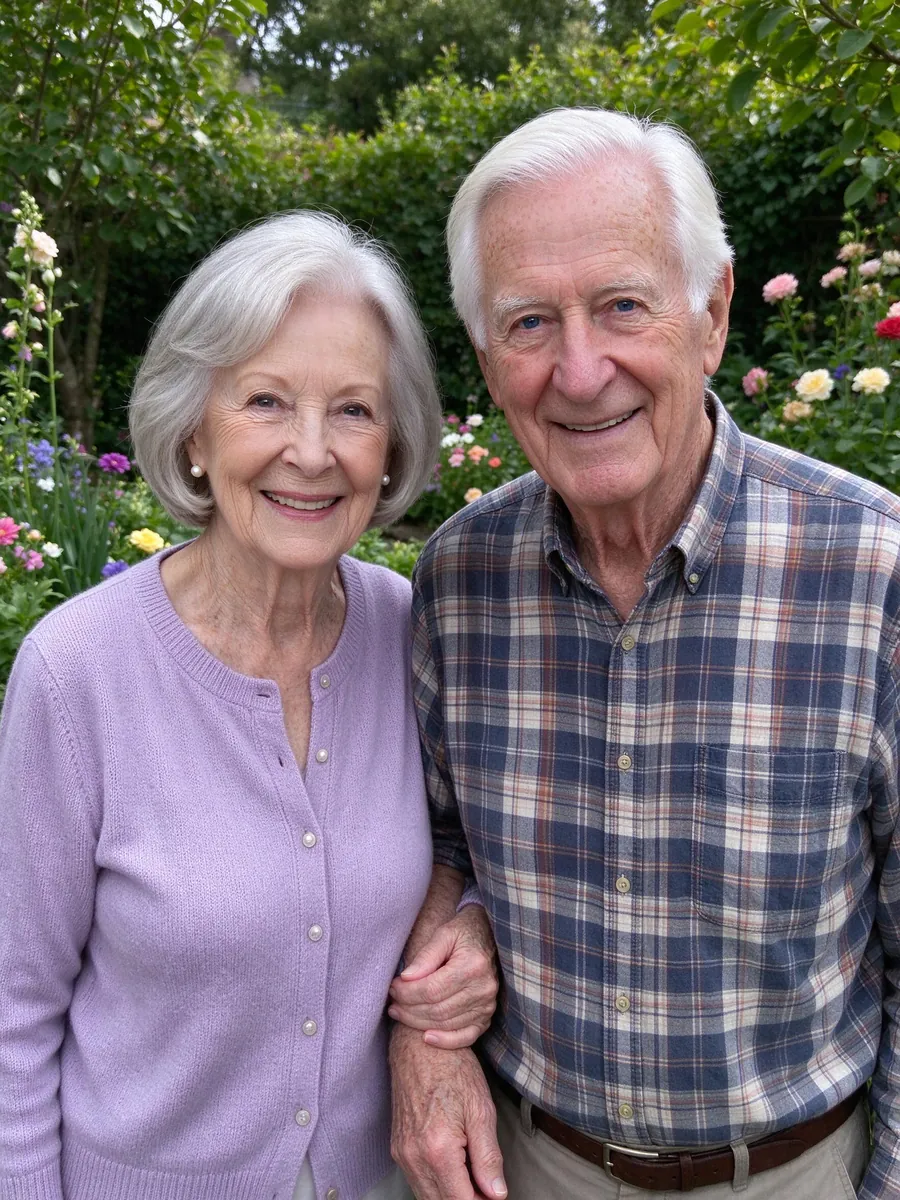
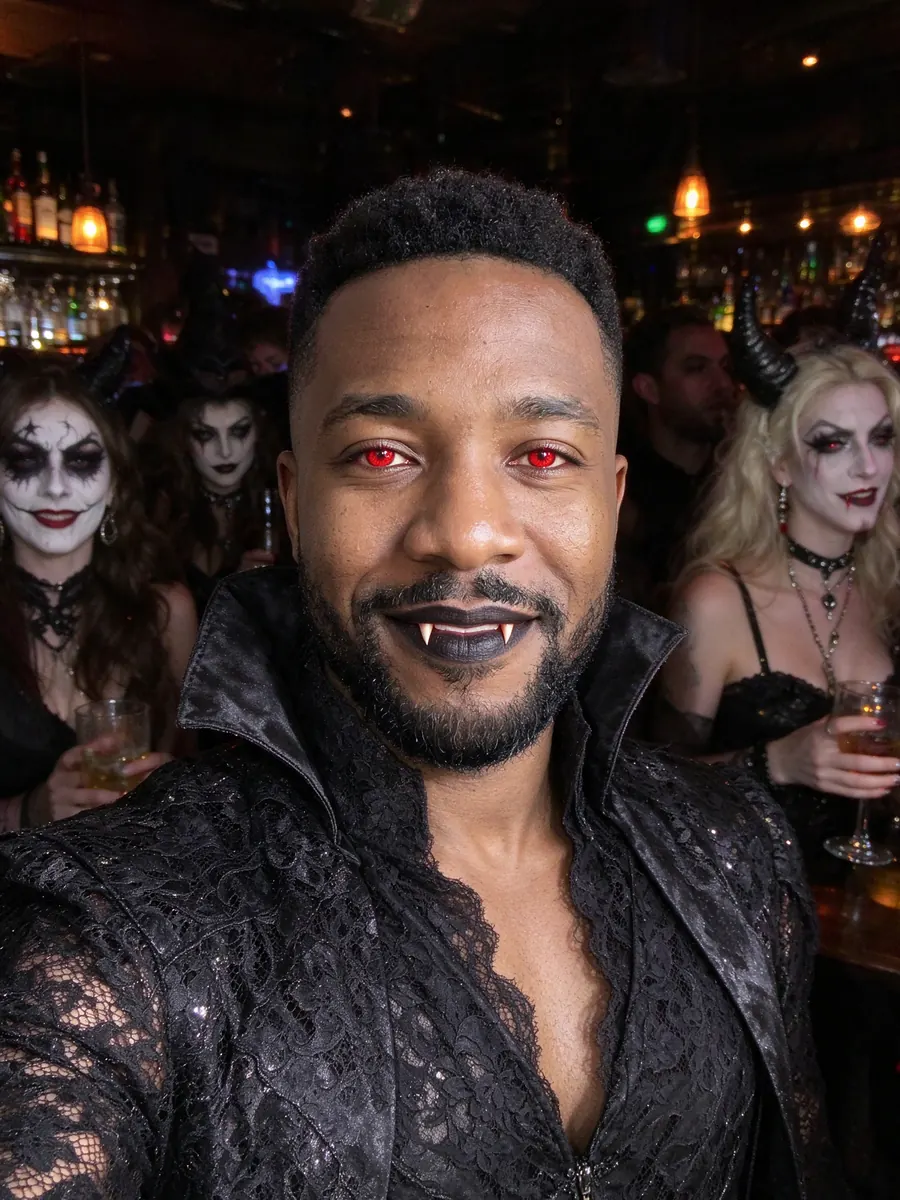
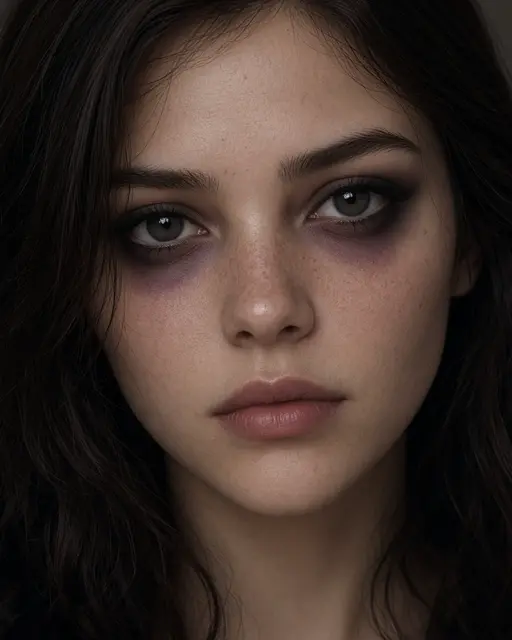
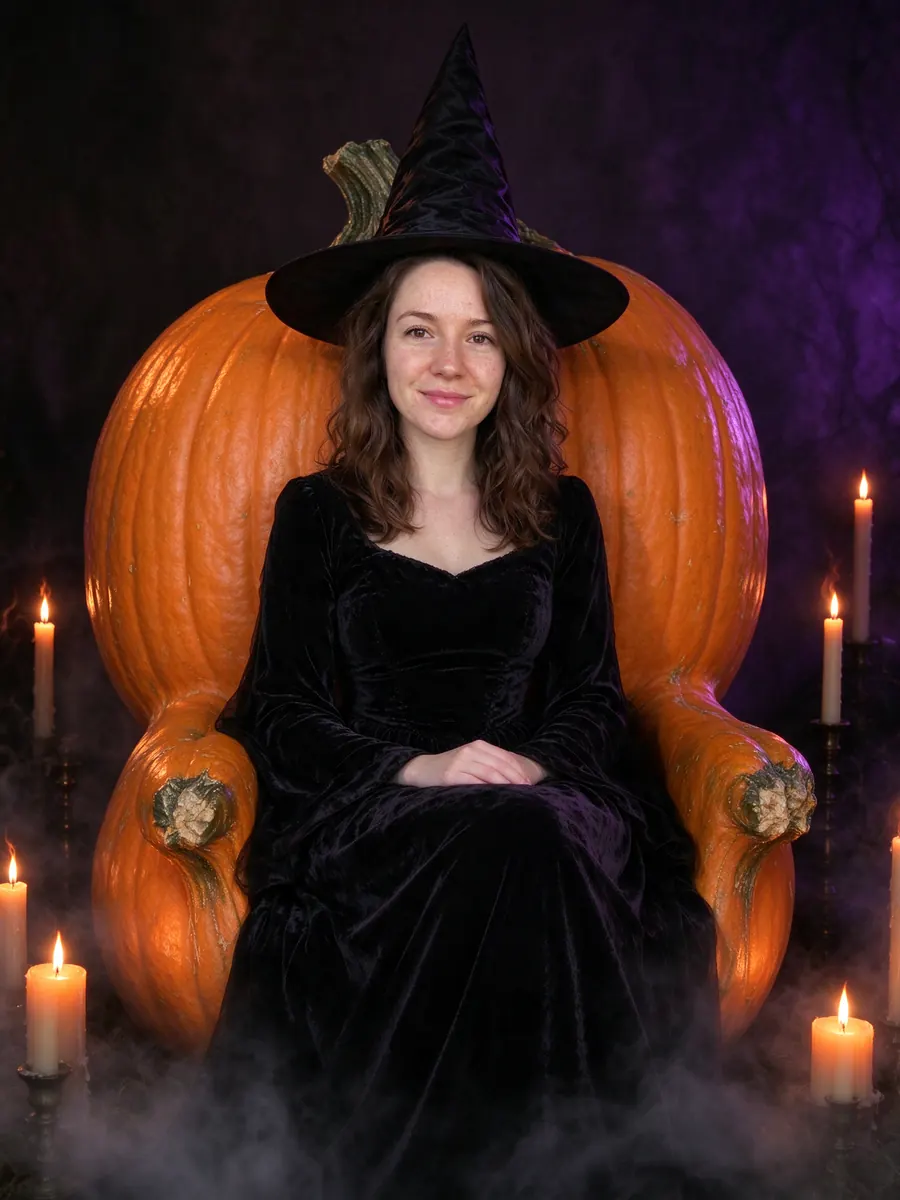
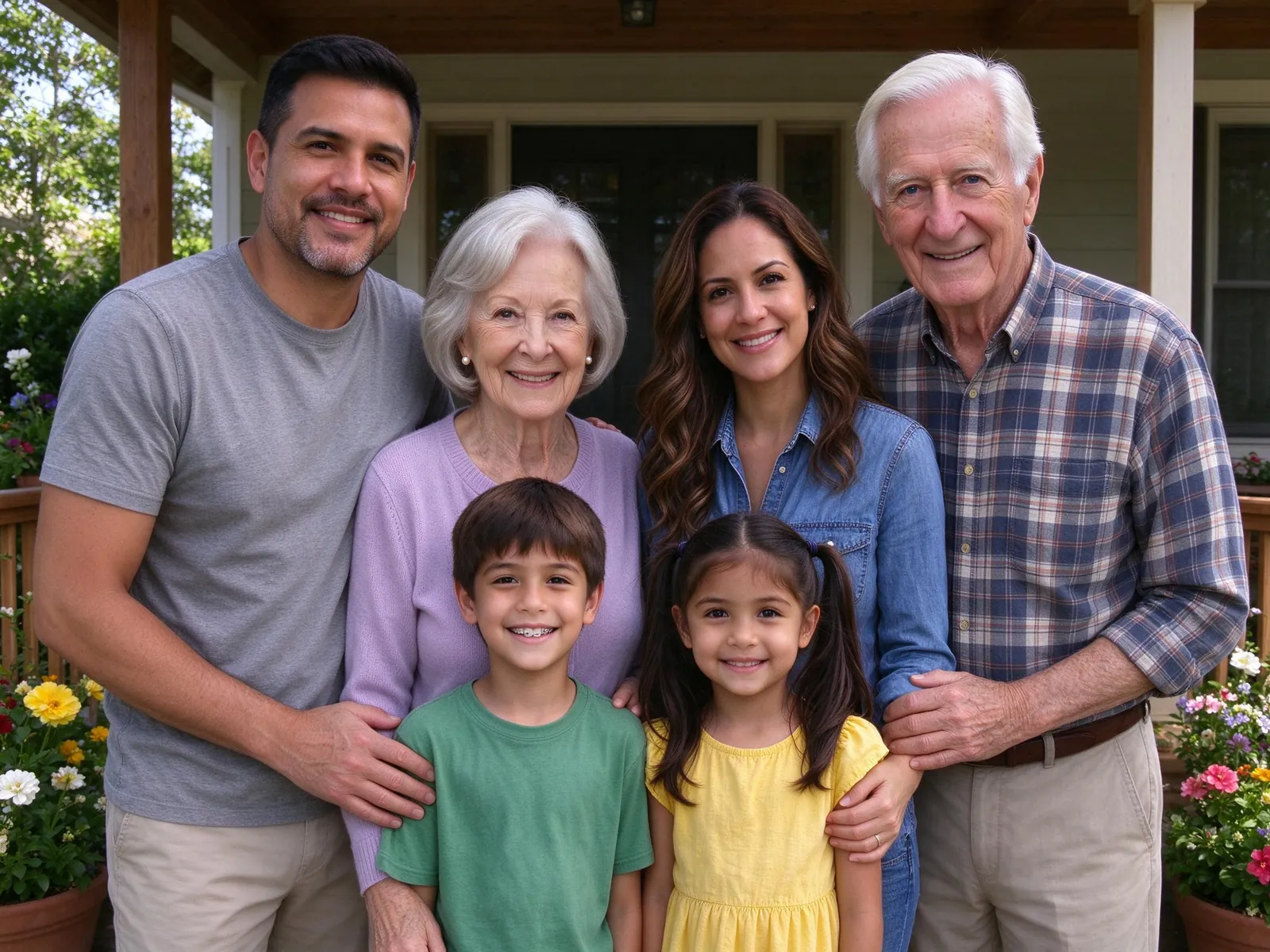
The porch picture at the top of this page came from these two separate photos. Nobody stood on that porch together.
Step 1: Collect one clear photo of each person
Ask everyone for a recent photo where their face is large, sharp and lit from the front. Daylight near a window is enough. Skip sunglasses, heavy filters and tiny faces in the back of a crowd.
A good test: zoom in on the face on your phone. If you can see the eyes clearly, the photo will probably work.
Step 2: Give every person their own slot
In the AI family photo generator, each person gets one upload slot. A group photo can cover several people, but a separate slot per person keeps the head count right. You can add a second angle of the same person inside their slot without counting them twice.
The limits are 8 people, 3 pets and 10 reference photos in total. A second angle uses one of the 10 photos. Bringing the dog or cat too? The pet portrait with owner guide covers which pet photos work best.
Step 3: Pick a scene instead of writing a prompt
Every scene comes with a prompt that was written and tested for it. You choose "Classic studio", "Golden-hour beach", "Autumn park", "Grandparents together" or one of the holiday scenes, and VibePico fills in your people and photos. You do not need to write a family photo prompt yourself. For scene ideas, see these three generation photo ideas or the Christmas family photo ideas at home.
Pick a canvas shape too. Portrait 4:5 suits most frames; landscape works for a wide group.
Step 4: Check the cost, then generate
The tool shows the credit cost before anything runs. A new verified account gets 10 credits, which covers one 1K preview with a visible watermark. After that, a 2K photo without a watermark costs 10 credits. The number of people does not change that price.
If the AI provider times out or returns nothing, VibePico retries once. If it still fails, the credits go back to your balance and the refund shows in your credit history.
Step 5: Compare every face before you download
Open the result next to the reference photos and look at each person in turn: eyes, smile lines, hair, glasses. Check grandparents and small children as closely as the adults. AI redraws every face, so age, hands or a pet's markings can shift even with clear photos.
If one person looks off, replace their photo with a clearer one or add a second angle. Each paid photo includes one free redo, up to three per account per day. A redo is a second try, not a promise of a closer likeness.
Which individual photos make the best combined family photo
Most bad results trace back to one weak reference. Here is what helps and what hurts:
- Face size. A face that fills a good part of the frame beats a full-body shot from across the room.
- Light. Even, front light beats a bright window behind the person.
- Expression. A natural smile carries over better than a squint or a half-turned head.
- Age of the photo. Recent photos matter most for kids, who change fast.
- Clothes. You can keep each person's own clothes or let the scene match outfits, such as Christmas pajamas.
Common mistakes when you combine individual photos into one family photo
Uploading one group photo for everyone. The model can lose track of who is who. Separate slots work better.
Forgetting someone in the count. Before you generate, confirm the number of people and pets you actually uploaded. When server-side checking is on, it counts the human faces in the result; a wrong count uses the photo's one retry, and if that also fails, the credits are released.
Expecting an edit of an existing photo. This approach makes a new picture. It does not add a missing person into a photo you already have.
Printing too big. Paid photos are 2K. The print layouts cover 4×6 and 5×7 inches. An 8×10 print needs a 4K upscale, which is not available yet.
AI family photo vs. a photo editor: which should you use?
| AI family photo tool | Manual photo editing | |
|---|---|---|
| Input | One photo per person | One photo per person plus a background |
| Lighting | Generated to match | Matched by hand |
| Faces | Redrawn, so check each one | Kept as shot |
| Time | About a minute per result | Often hours |
| Skill needed | None | Masking and color skills |
If you need every pixel of a face kept exactly as shot, a manual edit is the safer choice. For just two people, the couple photo guide uses the same steps. If you want everyone in one natural-looking scene and you are willing to check the faces, AI is faster. For a dedicated workspace with one slot per person, the family photo maker uses the same engine with the slots laid out up front.
Frequently asked questions
Can I make a family photo from individual photos for free?
Your first one, yes. A new verified account gets 10 credits for one watermarked 1K photo. Paid 2K photos without a watermark cost 10 credits each, and the pricing page lists the credit packs and subscriptions.
Do people need to agree before I use their photo?
Yes. Use photos only with each person's permission, and you must be the parent or guardian, or have their consent, for any child in the picture.
Will the family photo look exactly like us?
Not always. Clear, recent photos give the closest result, but the AI redraws every face. That is why the review screen puts the result next to each reference photo.
What happens to the photos I upload?
Preparing your photos happens in your browser. When you generate, the prepared photos go to private storage and to the AI provider through temporary links. VibePico's stored references expire after 24 hours, and results stay in your account until you delete them. The AI photo generator privacy guide walks through every step.
Make your family photo from individual photos now
That is how to make a family photo from individual photos: collect one clear photo of each person, pick a scene and check every face before you print. The AI family photo generator shows the cost before you start, and your first watermarked preview is included with sign-up.