How to Combine Two Photos Into One Portrait With AI
How to combine two photos into one portrait of two people: pick two clear solo shots, choose a setting and height, and check both faces before you share it.
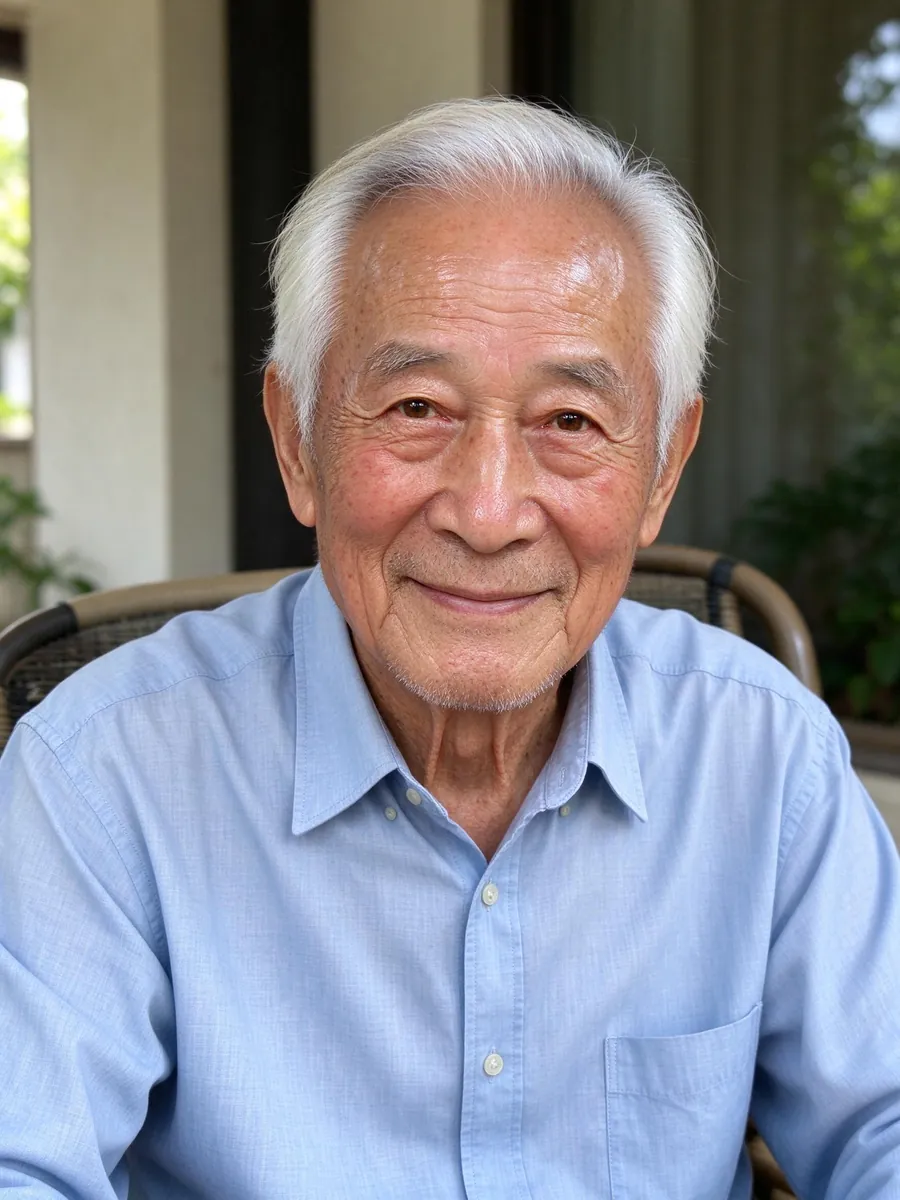
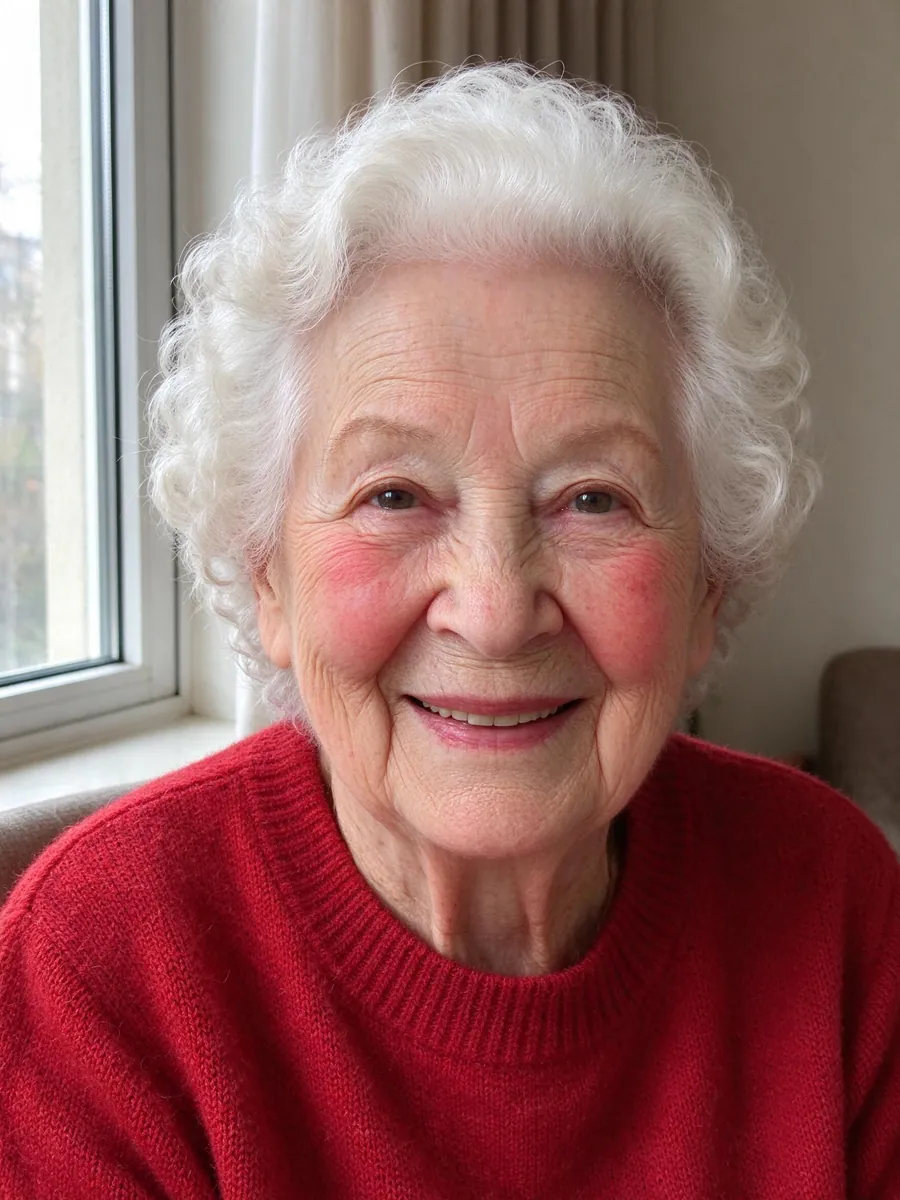
You have a good photo of your grandfather and a good photo of your grandmother, taken years apart in different rooms. There is no picture of the two of them together that you like. This guide explains how to combine two photos into one portrait with AI, so two people from separate pictures end up side by side in a new scene.
It works for siblings who live far apart, a parent and child, two friends or grandparents. The steps use VibePico's combine two photos tool, which takes exactly two people.
How to combine two photos into one: the short version
- Put one clear solo photo of each person into Person A and Person B.
- Choose a setting: side by side, a gentle hug, a wedding day or a holiday sofa.
- Choose natural height or similar eye level, and a 4:5, square or 16:9 shape.
- Check the cost and generate.
- Compare both faces with their original photos before you share.
The rest of this guide explains each step and the common mistakes.
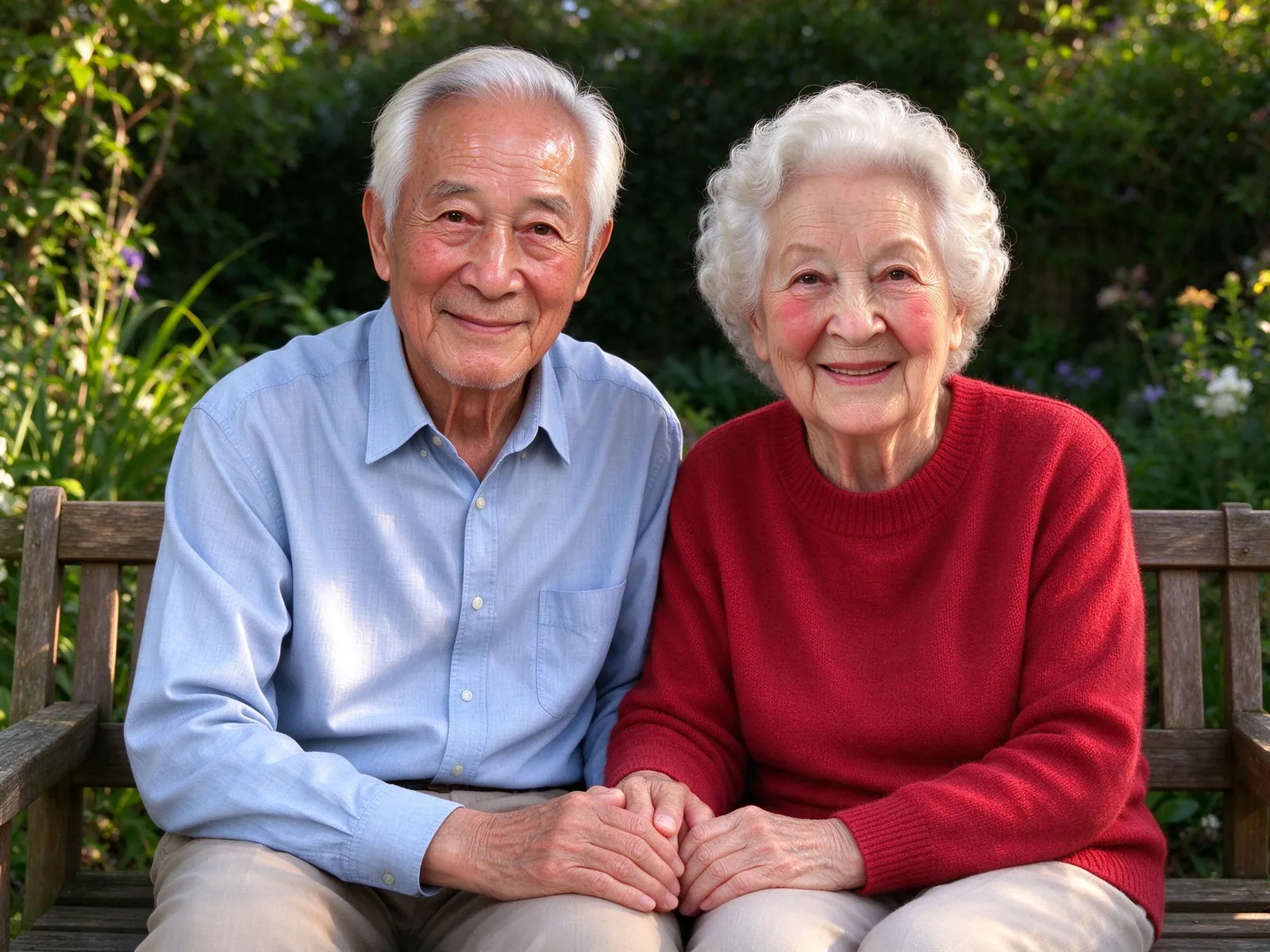
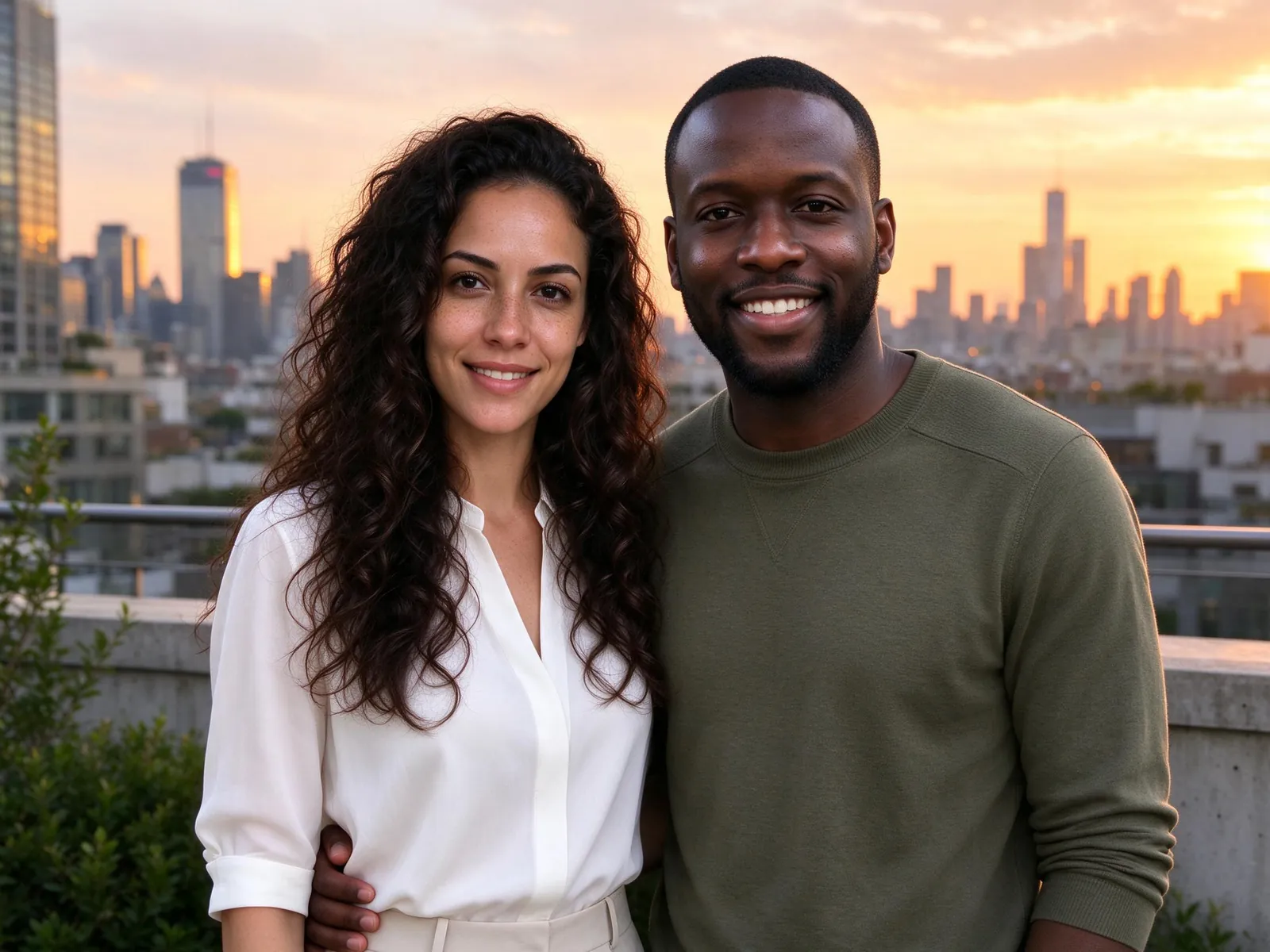
The bench picture at the top of this guide shows the kind of result the tool aims for. It is an illustration made for this page, not a result from a customer's photos and not a quality benchmark.
Step 1: Choose two solo photos to combine into one
The combine tool has two slots and takes exactly one photo per slot. No pets, no group photos and no extra angles.
What makes a good solo photo
- the face is large in the frame and clearly visible;
- the light falls on the face, not behind it;
- there are no sunglasses or face filters;
- only one person is in the picture.
Two photos from different places and years are fine. That is the point of the tool. But the closer the two photos are in sharpness and light, the more natural the result.
When two people is not enough
If you need three or more people, or a pet, use the family portrait workbench instead. It takes up to eight people and three pets. The guide on how to make a family photo from individual photos walks through it.
For a romantic couple, the couple photo guide covers moments like an anniversary dinner or a Paris café.
Step 2: Pick a setting for the two people
There are four settings:
- Side by side: the safest choice for likeness, because both faces stay forward.
- Gentle hug: warmer, but faces turn a little.
- Wedding day: a celebration setting. It does not mean the two people are marrying.
- Holiday sofa: a cozy seasonal scene.
Step 3: Choose height and shape
Height is where combined photos usually look wrong. One person was photographed close up, the other from far away, and the result shows a giant next to a tiny figure.
Natural height or similar eye level
Natural height keeps the real difference in size between the two people. Similar eye level lines up the faces through seating or camera framing, rather than making anyone look taller or older. Children keep their age and natural proportions either way.
Pick the canvas
Choose portrait 4:5 for a frame or a phone screen, square 1:1 for social posts, or landscape 16:9 for a wide scene.
Step 4: Check the cost and generate
Confirm permission from every adult in the photos and from the guardian of any child. The cost appears before you generate. The usual family-photo price applies: 10 credits for each paid 2K image. Eligible new accounts can use their one-time watermarked 1K signup preview here, as on the other family tools. This tool does not add an extra free allowance.
Preparing photos and looking at the examples do not use credits. Your draft is kept locally, so you can sign in and come back to it.
Step 5: Compare both faces with the originals
The model is asked to keep each person's identity, age, skin tone and natural proportions. It still redraws every face. Put the result next to each original and check eyes, eyebrows, hairline, teeth and glasses.
If one face looks off, replace that photo with a clearer one and try again.
What a combined photo can and cannot promise
- Likeness is not guaranteed. New poses and light can change small facial details.
- It is not a record. Two people on a bench did not sit on that bench. Label it as AI-generated when you share it.
- Permission comes first. Ask both people, or the family if someone has passed away.
If you already have a group picture and only need to put one more person in it, use Add Someone to a Picture instead of combining two solo photos.
The AI photo generator privacy guide explains what happens to uploads: references expire after 24 hours and results stay until you delete them.
Frequently asked questions
Can I combine more than two people?
Not in this tool. It has exactly two person slots. Use the family portrait workbench for up to eight people and three pets.
Will ages or faces change?
The recipe asks the model to keep each person's identity, age, skin tone and proportions, but AI can change details. Review both faces against the original photos.
How much does it cost to combine two photos?
A paid 2K image costs 10 credits. Eligible new accounts can use their one-time watermarked 1K preview. The pricing page lists the credit packs.
Combine two photos into one with VibePico
That is how to combine two photos into one portrait: two clear solo shots, a setting, the right height and a careful face check. Open the combine two photos tool, add Person A and Person B, and see the cost before you generate.